HelperBat feature
Booking pages
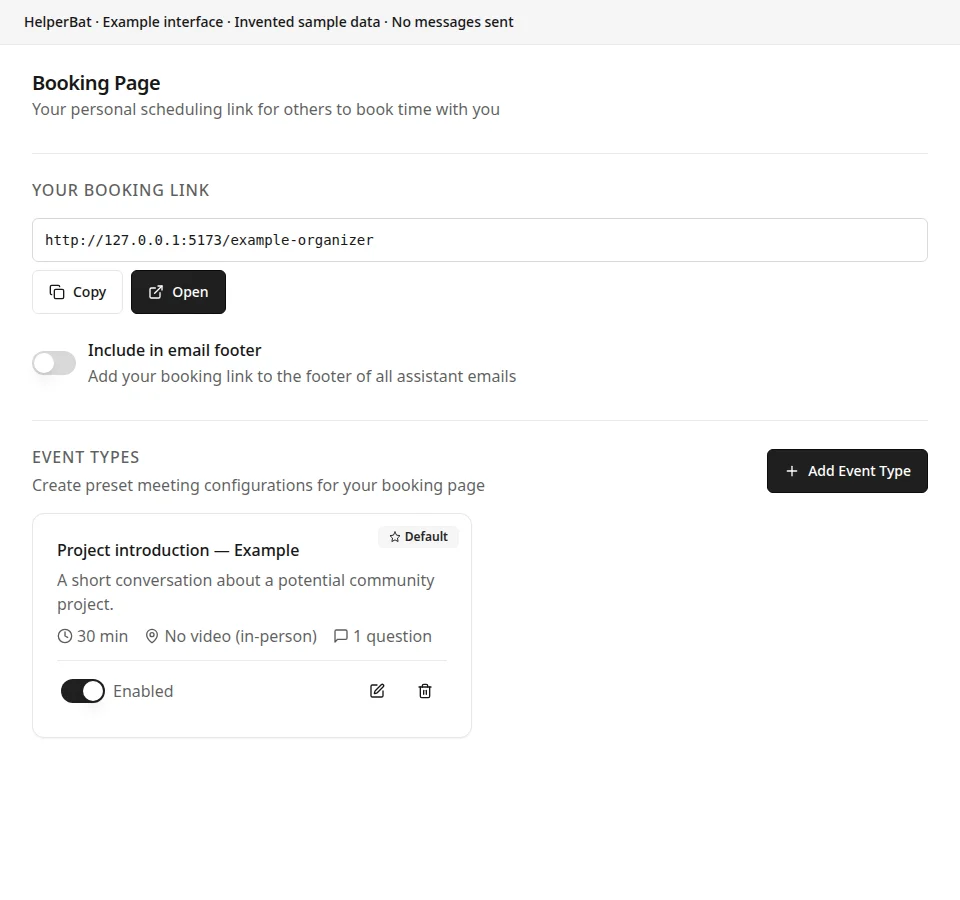
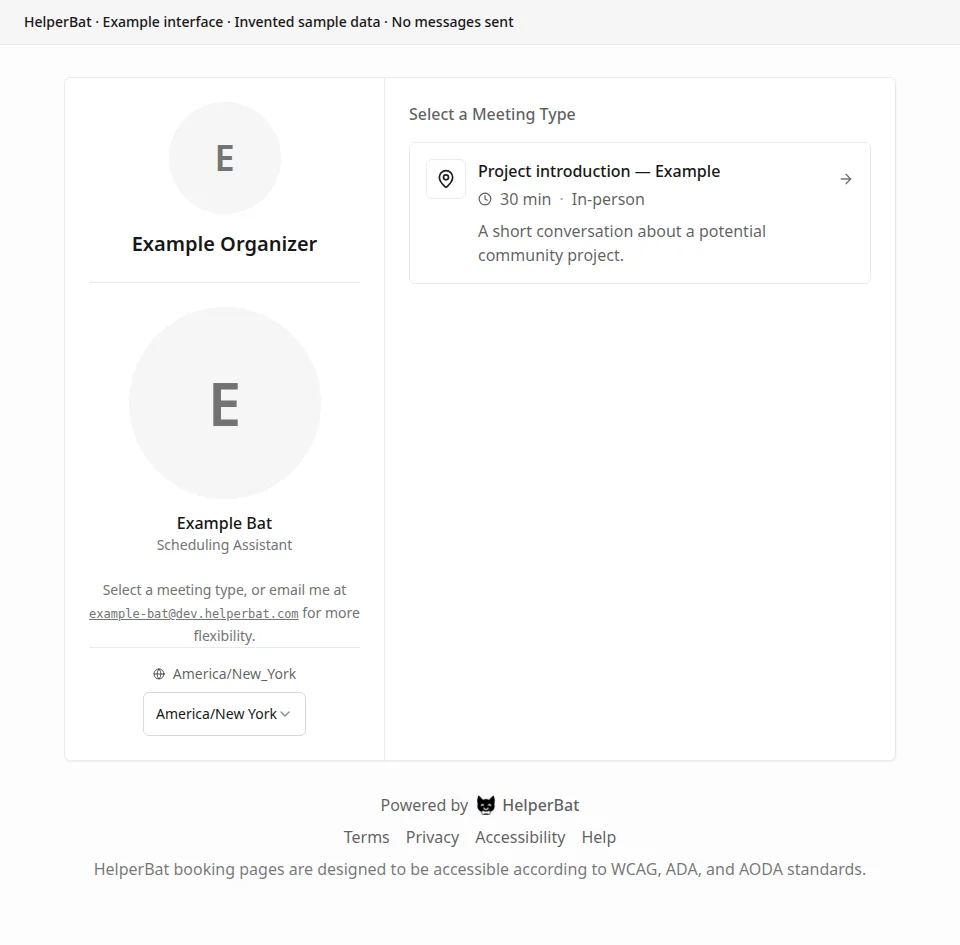
Configure meeting types—such as a 30-minute introduction—with a duration, description and available meeting details. Share your personal booking URL. Visitors first choose a meeting type, then select from the times offered for it and complete the booking.
In practice
A realistic use case
A consultant publishes separate introductory and project-review meeting types. A client opens the booking page, chooses the meeting type that fits, then chooses an offered time. The booked meeting follows that event type’s configured duration and calendar/video settings.
The workflow
From setup to follow-through
- 01
Set your account username to create your personal booking URL, and connect the calendar used for booking.
- 02
Create event types with a name, duration, description, video option or custom meeting URL, and any questions you want to ask.
- 03
Enable the event types you want shown on the public booking page and choose a default type if useful.
- 04
Share the booking link. Visitors first select a meeting type, then choose an offered date and time and provide the requested details.
- 05
Review the booking confirmation and calendar event. You can also choose whether to include your booking link in assistant email footers.
A look inside
Screens from the workflow
Good to know
What to expect
- Visitors choose from event types and times the booking page currently offers; this is not a group availability poll or a general event-registration page.
- The event type’s duration, calendar connection, video platform and any questions determine the meeting details. Review the resulting event.
- The visitor-facing page begins with meeting-type choices; the time selection follows after a visitor chooses a type.
Answers before signup
Frequently asked
What do visitors see first?
The initial public page presents your enabled meeting types. After choosing one, a visitor can proceed to its available time options.
What can I configure for a meeting type?
You can configure its name, duration, description, video platform or custom meeting URL, title template, default location and questions.
How do I share the page?
Set a username to create your personal booking URL, then copy and share it. You can also enable adding the booking link to the footer of assistant emails.
Is this the same as a group poll?
No. A booking page offers your configured meeting types and appointment slots to a visitor. A group poll asks several participants to vote on organizer-proposed times.
Next step
See if it fits your work.
Plans and prices can change; check the current details before signing up.