HelperBat feature
Email scheduling
The scheduling workflow starts in email: CC your HelperBat address on a meeting conversation. The assistant reads the thread context, uses availability from a connected Google or Outlook calendar, and can coordinate proposed times and event details without asking you to move the conversation into another scheduling app.
In practice
A realistic use case
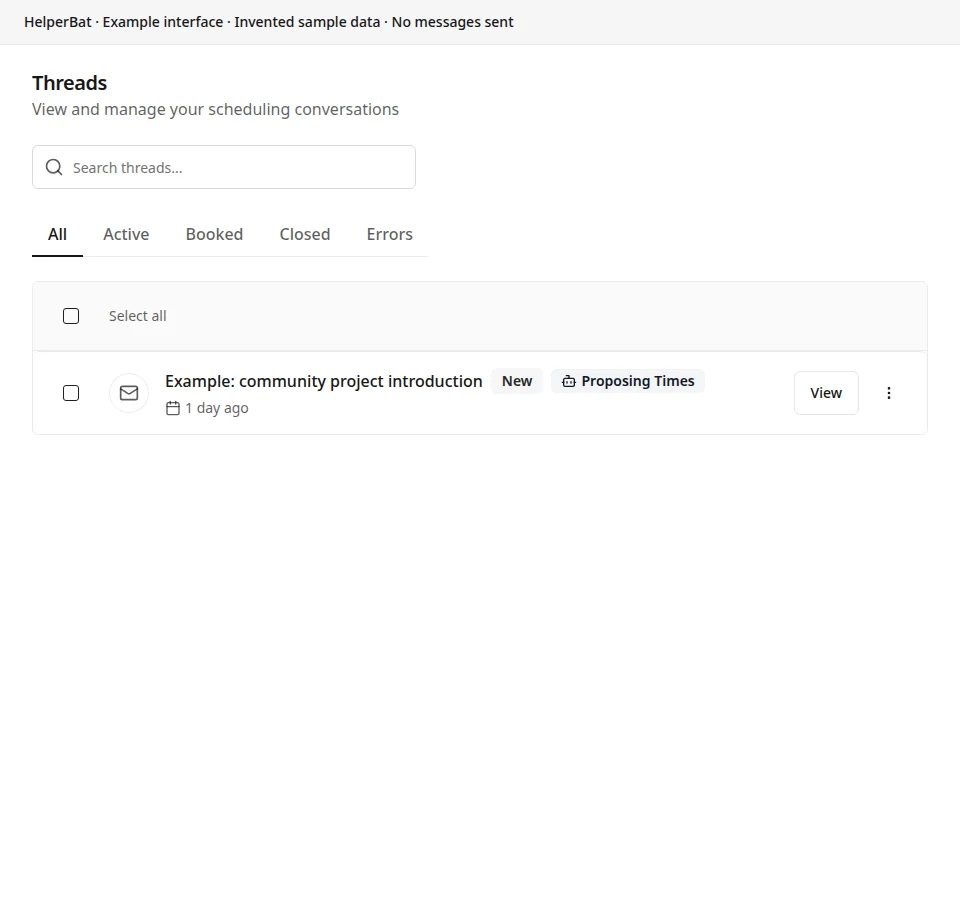
A consultant and a new client settle on the purpose and length of a project call by email. The consultant CCs HelperBat using a registered sender address. With an authorized calendar connected, the assistant can propose available options in context; after a time is agreed, the event workflow can create an invitation. The consultant checks the details before relying on the event.
The workflow
From setup to follow-through
- 01
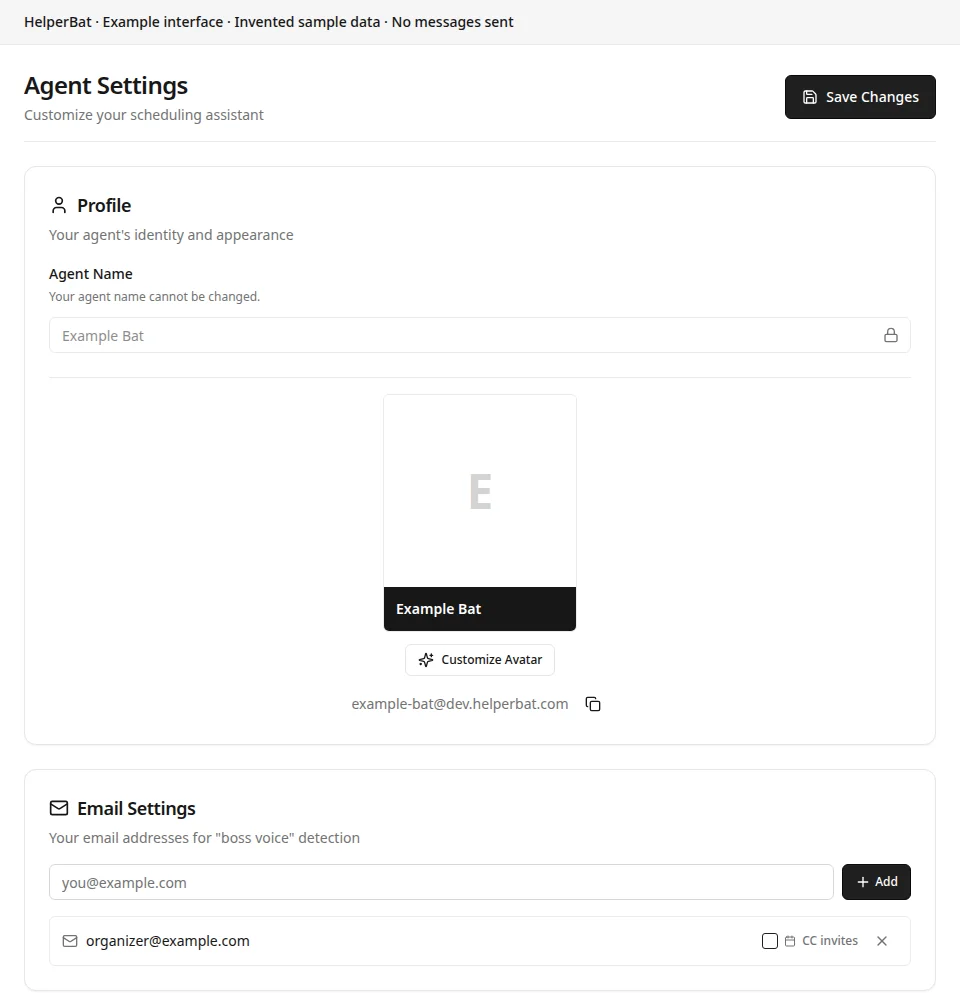
Set up your HelperBat assistant address and register the email address you will send from.
- 02
Connect Google Calendar or Outlook Calendar and authorize the calendar access needed for availability checks and event creation.
- 03
When a meeting request is clear in an email conversation, CC your assistant address from the registered sender account.
- 04
The assistant uses the message context and connected-calendar availability to coordinate options in the thread. Review its reply for dates, people, time zones and meeting requirements.
- 05
Once participants agree on a time, the event workflow can create a calendar event and send the invitation. Check the resulting event details.
A look inside
Screens from the workflow
Good to know
What to expect
- The email address sending or CC’ing HelperBat must be registered to your account, and calendar-aware availability requires an authorized connected calendar.
- The assistant works from the thread it receives. Ambiguous dates, time zones, recipients or meeting requirements can need clarification; review replies and invitations.
- This coordinates a conversation; it cannot make other participants respond or guarantee that a proposed time is accepted.
Answers before signup
Frequently asked
What do I need to set up first?
Create your assistant address, register the email addresses you use to contact it, and connect an authorized Google Calendar or Outlook Calendar for availability-aware coordination.
Does the assistant work inside an email thread?
Yes. CC your assistant address on an existing scheduling conversation. The assistant uses the thread context to help coordinate rather than requiring the participants to start in a separate meeting app.
What does the email settings screenshot show?
Example: it shows Agent Settings with the assistant address and registered email addresses. It is not a calendar-preferences screen.
Which calendars are supported?
The current setup supports Google Calendar and Microsoft Outlook Calendar. Calendar access depends on connecting the account and granting permissions.
Will a meeting be booked automatically?
The workflow can create a calendar event after the time is agreed. It cannot guarantee agreement or a reply from participants; check the invitation and event details.
Next step
See if it fits your work.
Plans and prices can change; check the current details before signing up.