HelperBat feature
Sign-up pages
Sign-up pages are built around predefined time slots with a capacity for each—not a general registration form. Publish the page and share its link; participants claim open slots first-come, first-served. Choose whether each person may claim one slot or several, whether participant names are public or private, and whether slots should block your calendar.
In practice
A realistic use case
A program coordinator offers six orientation slots. They set each slot’s capacity, allow each person to choose one time, keep participant names private, and enable online meeting details. As people register, the first-come-first-served capacity fills; the coordinator can review the sign-ups and update the event information.
The workflow
From setup to follow-through
- 01
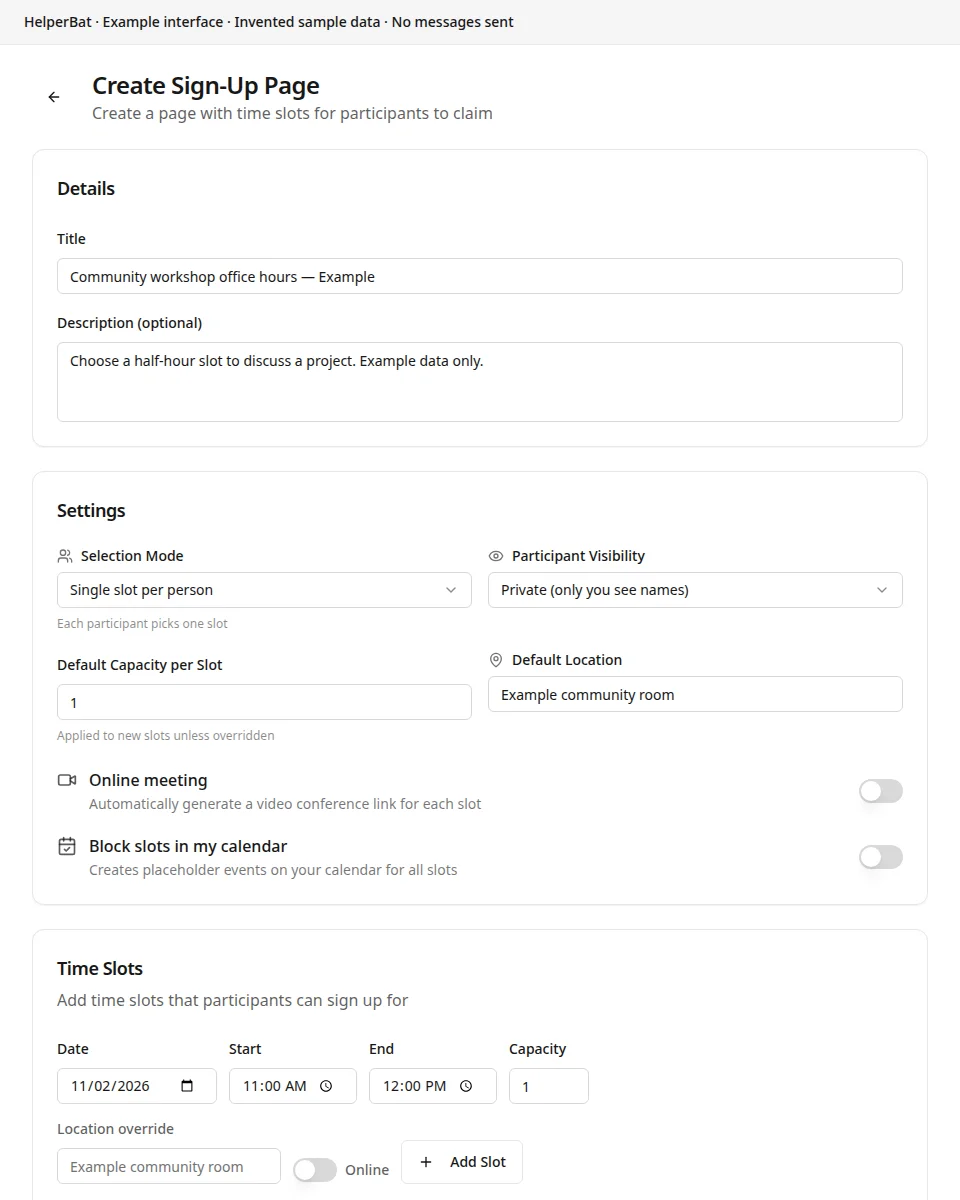
Create a page with a title, optional description and one or more dated time slots.
- 02
Set each slot’s capacity and location, and choose whether the activity is online. Optionally block the selected slots on your calendar with placeholder events.
- 03
Choose single-slot selection or allow participants to claim multiple slots. Set participant visibility to public (names visible to other visitors) or private (only you see names).
- 04
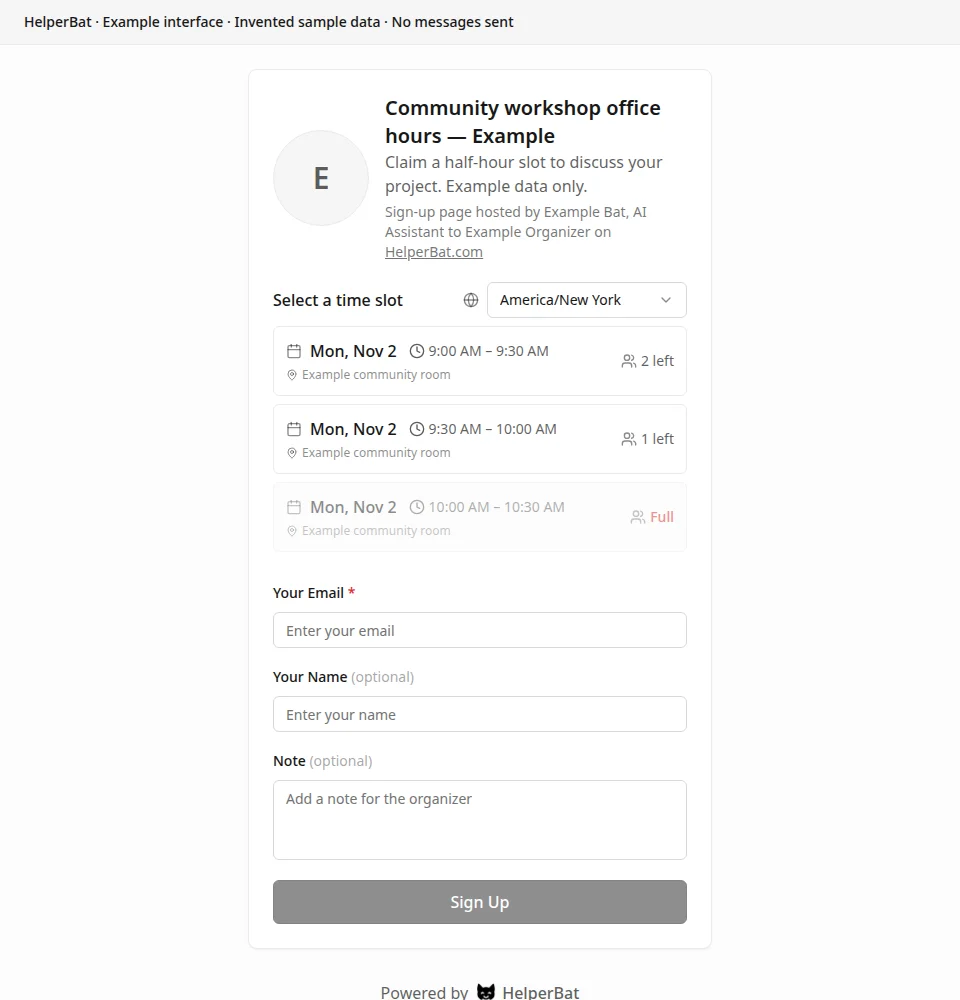
Preview the visitor page and share its public URL. Participants select available slot(s) and submit their registration details.
- 05
Monitor registrations and capacity from your sign-up page manager. A slot stops accepting claims when full; update page details or follow up with participants as needed.
A look inside
Screens from the workflow
Good to know
What to expect
- The page offers organizer-defined slots with finite per-slot capacity and first-come, first-served claims; it does not create arbitrary appointment times from live calendar availability.
- The organizer sets capacity, location, online status and whether calendar placeholder events are created. Keep the published details current and communicate changes to participants.
- Participant visibility is a page setting: public displays who has signed up; private limits name visibility to the organizer.
Answers before signup
Frequently asked
How are time slots claimed?
Participants claim a slot on a first-come, first-served basis until its capacity is reached. You set a default capacity and can override capacity for individual slots.
Can one person select multiple slots?
Yes, if you choose multi-selection. In single mode, each participant can claim one slot; in multi mode, they can register for several.
Who can see participant names?
Choose public visibility to show who signed up to visitors, or private visibility so only the organizer sees names.
Can I add a location or make a slot online?
Yes. Set a default location or a per-slot location, and enable online meeting details for the page.
Can sign-up slots block my calendar?
Yes. The optional calendar-block setting creates placeholder events for the page’s slots. Leave it off if you do not want those blocks.
Is this a normal event registration or ticketing form?
No. Its core workflow is capacity-limited time-slot claiming. It does not provide ticket sales or payment processing.
Next step
See if it fits your work.
Plans and prices can change; check the current details before signing up.